

Summary#
The Logitech MX Creative Console bundles a customizable LCD keypad with a tactile wireless dialpad to speed up editing, design, and streaming workflows. With broad Adobe support, app-specific profiles, and a compact desk footprint, it is one of the most practical control surfaces for creators who want faster shortcuts without a full studio console.
At a Glance#
Product : Logitech MX Creative Console - Graphite
Brand : Logitech
Best For : Editors, designers, and streamers who want tactile shortcut control for creative apps without a bulky desktop setup
Connectivity : USB-C keypad + Bluetooth Low Energy dialpad
Buy Now : View on Amazon
Key Highlights:
- Nine LCD shortcut keys keep changing app commands visible instead of forcing you to memorize them
- Wireless dialpad adds a smooth aluminum dial, roller, and extra keys for fine adjustments
- Ready-made profiles support Adobe apps, Final Cut Pro, DaVinci Resolve, Figma, Zoom, Spotify, and more
- Logi Options+ lets you build custom pages, icons, and app-specific layouts around your own workflow
- Small two-piece layout fits crowded desks more easily than a full-size creator console
Who Should Buy This#
The MX Creative Console is for people who already know keyboard shortcuts but want something faster, more visual, and easier to adapt across multiple apps. It makes the biggest difference when your work alternates between repetitive commands and precise adjustments such as brushing masks, scrubbing timelines, changing brush sizes, or navigating panels all day.
Perfect for:
- Photo editors who want faster Lightroom and Photoshop control for rating, masking, cropping, and color work
- Video editors who need tactile timeline nudging and quick tool switching in Premiere Pro, Final Cut Pro, or DaVinci Resolve
- Graphic and UI designers who bounce between Figma, Illustrator, and Affinity Photo and want app-aware shortcuts on screen
- Remote creators and presenters who split time between production apps and Zoom or Teams and want fewer keyboard gymnastics
If you want to check current availability before committing, use the live listing here: View on Amazon
Design & Build Quality#
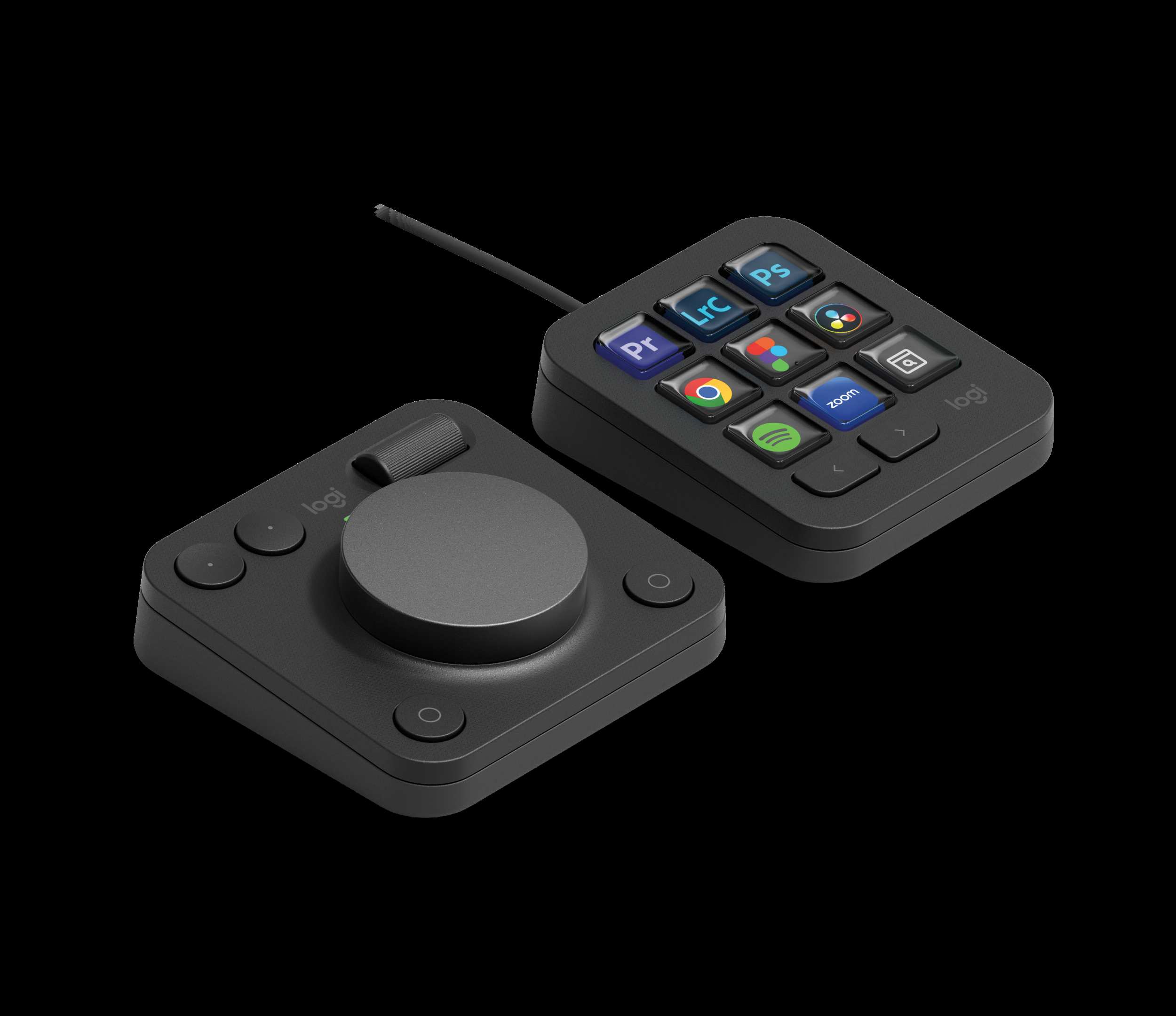
Logitech avoids the oversized "mini mixing desk" look that makes some creator controllers hard to live with. The MX Creative Console splits into two parts: a compact keypad with nine LCD keys and a separate dialpad with a large aluminum dial, roller, and supporting buttons. That layout gives you more flexibility than an all-in-one slab because you can keep the keypad near your keyboard and place the dialpad wherever your dominant hand lands naturally.
The Graphite version looks clean and understated on a modern desk, and the included stand helps keep the keypad readable without taking up much extra depth. It feels more like a refined MX-series accessory than a niche studio gadget, which is a good thing if this will live beside a laptop, tablet, or regular office setup.
Key Features#
Nine LCD Keys That Change With Your App#
The biggest advantage here is visibility. Instead of relying on muscle memory or taped-on labels, the keypad shows context-aware actions on its LCD keys. Logitech ships recommended profiles so you can jump into Photoshop, Premiere Pro, Lightroom Classic, and similar apps with useful commands already mapped.
That matters in real work because it lowers the friction for less-frequent tools. You are more likely to use ratings, presets, or export actions when they stay visible instead of hiding behind a memorized key combo.
Wireless Dialpad for Precise Control#
The separate dialpad is where the Console starts to feel meaningfully different from a macro pad. Logitech pairs an aluminum low-friction dial with a smooth roller and extra keys, giving you analog-style control for adjustments that feel clumsy on a keyboard.
For creators, this is the part that improves flow. Rotating brush size, moving through a timeline, or nudging values in small increments is simply more intuitive with a dial than repeated key taps.
Broad Creative App Integration#
Logitech lists support for Adobe Lightroom, Lightroom Classic, Photoshop, Premiere Pro, After Effects, Audition, Illustrator, Final Cut Pro, DaVinci Resolve, Figma, Affinity Photo, Zoom, Spotify, and Microsoft Teams, with more plugins available through the Logi Marketplace.
That range makes the Console easier to justify than single-purpose gear. It can serve as both a dedicated editing tool and a general productivity controller when you are not actively inside your main creative app.
Deep Customization in Logi Options+#
The Logi Options+ app is the real engine behind the hardware. You can assign shortcuts and actions, swap icons, and build up to 15 keypad pages per app, which gives the Console room to grow with more complex workflows instead of becoming a fixed-function accessory.
That flexibility is especially useful for hybrid users who edit, design, present, and manage admin work from the same desk. One hardware setup can adapt without forcing you into a single software ecosystem.
Compact Two-Piece Layout#
Because the keypad and dialpad are separate, the Console works on smaller desks better than many creator control surfaces. You can place the keypad close to your monitor for quick visual reference and keep the dialpad beside a mouse, pen tablet, or trackpad.
This also makes the Console friendlier for laptop users who dock at a desk part-time. It adds control without demanding a permanent full-width workstation layout.
Practical Box Contents and Cross-Platform Support#
The bundle includes the dialpad, keypad, stand, USB-C to USB-C cable, and user documentation. The dialpad runs on two AAA batteries, while the keypad connects by cable. Official requirements include Windows 10 or later or macOS 13 or later, a USB-C port, Bluetooth Low Energy, and the Logi Options+ app.
That setup is straightforward for the target audience. If you already use modern creative software on a current Mac or Windows machine, there is very little extra hardware friction here.
Technical Specifications#
Color : Graphite
Keypad Layout : 9 customizable LCD keys
Dialpad Connectivity : Bluetooth Low Energy
Keypad Connectivity : USB-C to USB-C high-speed 2.0 cable
Supported Platforms : Windows 10 or later, macOS 13 or later
Required Software : Logi Options+
Supported Apps : Adobe Lightroom, Lightroom Classic, Photoshop, Premiere Pro, After Effects, Audition, Illustrator, Final Cut Pro, DaVinci Resolve, Figma, Affinity Photo, Zoom, Spotify, Microsoft Teams, and more via Marketplace
MX Creative Dialpad Size : 3.63 x 3.69 x 1.33 in (92.1 x 93.7 x 33.8 mm)
MX Creative Dialpad Weight : 4.51 oz (128 g)
MX Creative Keypad Size : 3.61 x 3.07 x 1 in (91.7 x 77.9 x 25.5 mm)
MX Creative Keypad Weight : 3.39 oz (96 g)
Cable Length : 59.06 in (1500 mm)
Power : Dialpad uses 2 AAA batteries; keypad is USB-C powered
Warranty : 1-year limited hardware warranty
In the Box : MX Creative Dialpad, MX Creative Keypad, stand, USB-C to USB-C cable, and user documentation
Pros & Cons#
Pros:
- LCD shortcut keys make changing app commands easier to learn and faster to use
- Separate dialpad gives you much better fine control than a standard macro keypad
- Strong app support covers major Adobe tools plus Final Cut Pro, Resolve, Figma, and more
- Compact two-piece layout fits smaller desks and laptop setups well
- Custom pages, icons, and profiles make it adaptable for complex workflows
- Graphite finish and MX-style industrial design look clean in mixed work-and-home setups
Cons:
- Requires Logi Options+, so it is less attractive if you want a purely hardware-driven controller
- Dialpad uses AAA batteries instead of rechargeable internal power
- Nine LCD keys can feel limiting if you want a full stream-deck-style wall of shortcuts on one page
- Best value comes from multi-app creative work, not from simple one-app or casual office use
Final Verdict#
Buy it. The Logitech MX Creative Console hits a smart middle ground between a bare macro pad and a bulky pro control surface, giving creators faster shortcuts and better analog control without taking over the desk.
Our recommendation: Buy it if you regularly move between Adobe apps, Figma, or video tools and want a more tactile workflow that still feels at home in a normal desk setup. View on Amazon